> ## Documentation Index
> Fetch the complete documentation index at: https://docs-dev-feat-one-trust-integration.mintlify.site/llms.txt
> Use this file to discover all available pages before exploring further.

# ユースケース：Formsを使用して追加のサインアップ手順を構成する

> Forms for Actionsを使用して追加のサインアップ手順を構成する方法を説明します。

<Card title="始める前に">
  1. 以下のスコープを有効にして、[マシンツーマシンアプリケーション](https://auth0.com/docs/get-started/auth0-overview/create-applications/machine-to-machine-apps)を作成します。

  * `read:users`
  * `update:users`
  * `create:users`
  * `read:users_app_metadata`
  * `update:users_app_metadata`
  * `create:users_app_metadata`

  2. マシンツーマシンアプリケーションの資格情報を使って[Vault接続](/docs/ja-jp/customize/forms/vault)を追加します。
</Card>

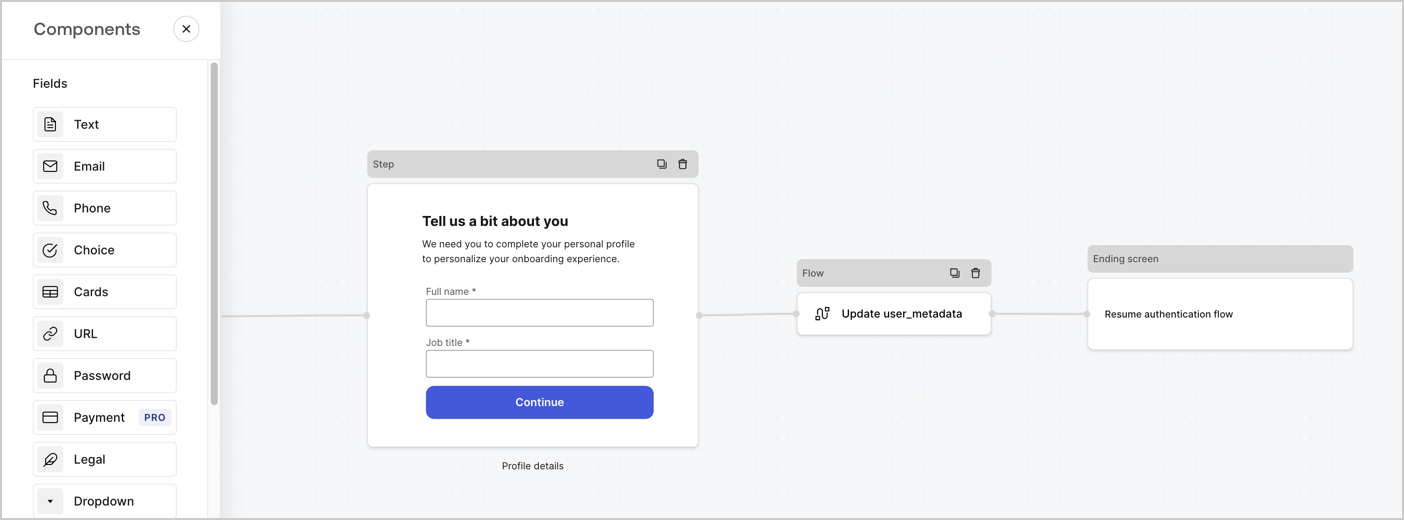
Forms for Actionsを使用すると、サインアップまたはログインフローに追加のステップを作成し、ユーザーがアプリケーションにアクセスできるようにする前にそれらのステップを必須にすることができます。
<Frame>
  <img src="https://mintcdn.com/docs-dev-feat-one-trust-integration/7Ch1yx7KUGpu0HOb/docs/images/ja-jp/cdy7uua7fh8z/ZOQNi6SrEC9OREcBbdiJ3/d79f84fb61acd5473bdf932527e26d58/custom-signup-form.png?fit=max&auto=format&n=7Ch1yx7KUGpu0HOb&q=85&s=cbcd63223d926990af617269591b7251" alt="Dashboard > Actions > Forms > Use Case Custom Signup Form" data-og-width="1404" width="1404" data-og-height="520" height="520" data-path="docs/images/ja-jp/cdy7uua7fh8z/ZOQNi6SrEC9OREcBbdiJ3/d79f84fb61acd5473bdf932527e26d58/custom-signup-form.png" data-optimize="true" data-opv="3" srcset="https://mintcdn.com/docs-dev-feat-one-trust-integration/7Ch1yx7KUGpu0HOb/docs/images/ja-jp/cdy7uua7fh8z/ZOQNi6SrEC9OREcBbdiJ3/d79f84fb61acd5473bdf932527e26d58/custom-signup-form.png?w=280&fit=max&auto=format&n=7Ch1yx7KUGpu0HOb&q=85&s=7bc2e8cacfc2737ab6765320db6786b4 280w, https://mintcdn.com/docs-dev-feat-one-trust-integration/7Ch1yx7KUGpu0HOb/docs/images/ja-jp/cdy7uua7fh8z/ZOQNi6SrEC9OREcBbdiJ3/d79f84fb61acd5473bdf932527e26d58/custom-signup-form.png?w=560&fit=max&auto=format&n=7Ch1yx7KUGpu0HOb&q=85&s=4e0ace75c476abd1e920890fbdf4d072 560w, https://mintcdn.com/docs-dev-feat-one-trust-integration/7Ch1yx7KUGpu0HOb/docs/images/ja-jp/cdy7uua7fh8z/ZOQNi6SrEC9OREcBbdiJ3/d79f84fb61acd5473bdf932527e26d58/custom-signup-form.png?w=840&fit=max&auto=format&n=7Ch1yx7KUGpu0HOb&q=85&s=60a38d39d53a562802fdc5b9e1d1fa5e 840w, https://mintcdn.com/docs-dev-feat-one-trust-integration/7Ch1yx7KUGpu0HOb/docs/images/ja-jp/cdy7uua7fh8z/ZOQNi6SrEC9OREcBbdiJ3/d79f84fb61acd5473bdf932527e26d58/custom-signup-form.png?w=1100&fit=max&auto=format&n=7Ch1yx7KUGpu0HOb&q=85&s=2df9ee6101d4b333fc20b2393e8c0bcb 1100w, https://mintcdn.com/docs-dev-feat-one-trust-integration/7Ch1yx7KUGpu0HOb/docs/images/ja-jp/cdy7uua7fh8z/ZOQNi6SrEC9OREcBbdiJ3/d79f84fb61acd5473bdf932527e26d58/custom-signup-form.png?w=1650&fit=max&auto=format&n=7Ch1yx7KUGpu0HOb&q=85&s=6fab7228eba1774ce5b8523ee7e96765 1650w, https://mintcdn.com/docs-dev-feat-one-trust-integration/7Ch1yx7KUGpu0HOb/docs/images/ja-jp/cdy7uua7fh8z/ZOQNi6SrEC9OREcBbdiJ3/d79f84fb61acd5473bdf932527e26d58/custom-signup-form.png?w=2500&fit=max&auto=format&n=7Ch1yx7KUGpu0HOb&q=85&s=588446c9e7632d3181f78690ea6bccad 2500w" />
</Frame>

以下のセクションでは、ノードとフローを使用して追加のサインアップステップフォームを作成する方法と、フォームを[ポストログイン](/docs/ja-jp/customize/actions/explore-triggers/signup-and-login-triggers/login-trigger)アクションに追加する手順について説明します。

## フォームをゼロから作成する

情報を収集するためのフォームを作成するには、次の手順に従ってください。

1. **［Auth0 Dashboard］>［Actions（アクション）］>［Forms（フォーム）］** の順に選択して、フォームエディターを開きます。
2. **［Create Form（フォームを作成）］** > **［Start from scratch（初めから作成する）］** の順に選択します。

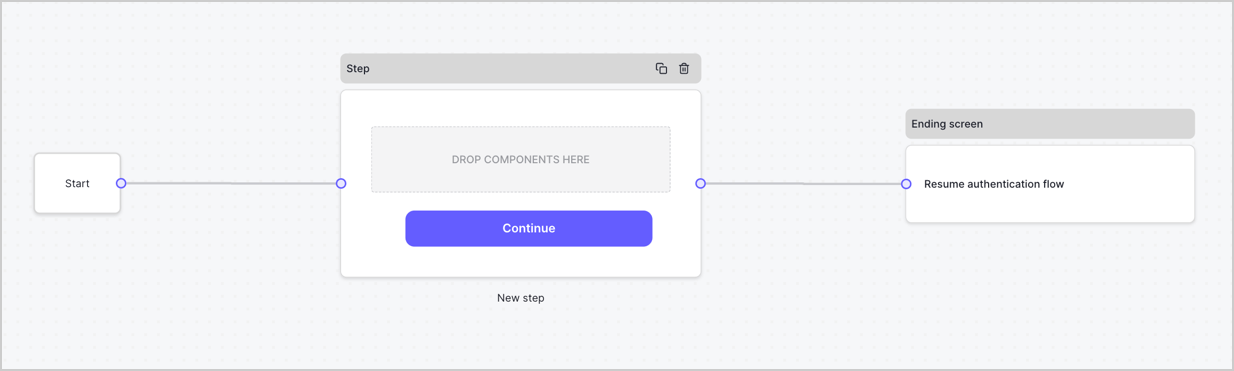
特に設定を変更しない限り、新しいフォームには開始ノード、ステップノード、および終了スクリーンノードが含まれます。
<Frame>
  <img src="https://mintcdn.com/docs-dev-feat-one-trust-integration/xsbfrTtzlS-YzBBm/docs/images/ja-jp/cdy7uua7fh8z/2TZ9jSjgEcARFpULI6hz4R/a4319a1bd482f2ee5cc23100fdb2f42c/New-form-Forms-for-action-use-case.png?fit=max&auto=format&n=xsbfrTtzlS-YzBBm&q=85&s=29202767c0660e92f6c7779b974bd9a5" alt="Dashboard > Forms > Use Cases > Form" data-og-width="1234" width="1234" data-og-height="371" height="371" data-path="docs/images/ja-jp/cdy7uua7fh8z/2TZ9jSjgEcARFpULI6hz4R/a4319a1bd482f2ee5cc23100fdb2f42c/New-form-Forms-for-action-use-case.png" data-optimize="true" data-opv="3" srcset="https://mintcdn.com/docs-dev-feat-one-trust-integration/xsbfrTtzlS-YzBBm/docs/images/ja-jp/cdy7uua7fh8z/2TZ9jSjgEcARFpULI6hz4R/a4319a1bd482f2ee5cc23100fdb2f42c/New-form-Forms-for-action-use-case.png?w=280&fit=max&auto=format&n=xsbfrTtzlS-YzBBm&q=85&s=55488ebe982f7fcdeef371a269d9de0f 280w, https://mintcdn.com/docs-dev-feat-one-trust-integration/xsbfrTtzlS-YzBBm/docs/images/ja-jp/cdy7uua7fh8z/2TZ9jSjgEcARFpULI6hz4R/a4319a1bd482f2ee5cc23100fdb2f42c/New-form-Forms-for-action-use-case.png?w=560&fit=max&auto=format&n=xsbfrTtzlS-YzBBm&q=85&s=1931838fb5a3e8dbb49057738978d0f3 560w, https://mintcdn.com/docs-dev-feat-one-trust-integration/xsbfrTtzlS-YzBBm/docs/images/ja-jp/cdy7uua7fh8z/2TZ9jSjgEcARFpULI6hz4R/a4319a1bd482f2ee5cc23100fdb2f42c/New-form-Forms-for-action-use-case.png?w=840&fit=max&auto=format&n=xsbfrTtzlS-YzBBm&q=85&s=3b0261e4462c0f69cc5642e7e15f17c5 840w, https://mintcdn.com/docs-dev-feat-one-trust-integration/xsbfrTtzlS-YzBBm/docs/images/ja-jp/cdy7uua7fh8z/2TZ9jSjgEcARFpULI6hz4R/a4319a1bd482f2ee5cc23100fdb2f42c/New-form-Forms-for-action-use-case.png?w=1100&fit=max&auto=format&n=xsbfrTtzlS-YzBBm&q=85&s=14a3b20df2ecce84f43b55d9b6fababb 1100w, https://mintcdn.com/docs-dev-feat-one-trust-integration/xsbfrTtzlS-YzBBm/docs/images/ja-jp/cdy7uua7fh8z/2TZ9jSjgEcARFpULI6hz4R/a4319a1bd482f2ee5cc23100fdb2f42c/New-form-Forms-for-action-use-case.png?w=1650&fit=max&auto=format&n=xsbfrTtzlS-YzBBm&q=85&s=68543d2d2b11f9d6c6a1eaf8b3de3ad9 1650w, https://mintcdn.com/docs-dev-feat-one-trust-integration/xsbfrTtzlS-YzBBm/docs/images/ja-jp/cdy7uua7fh8z/2TZ9jSjgEcARFpULI6hz4R/a4319a1bd482f2ee5cc23100fdb2f42c/New-form-Forms-for-action-use-case.png?w=2500&fit=max&auto=format&n=xsbfrTtzlS-YzBBm&q=85&s=41e11721fb106925614a493935df4023 2500w" />
</Frame>

### ステップノードを構成する

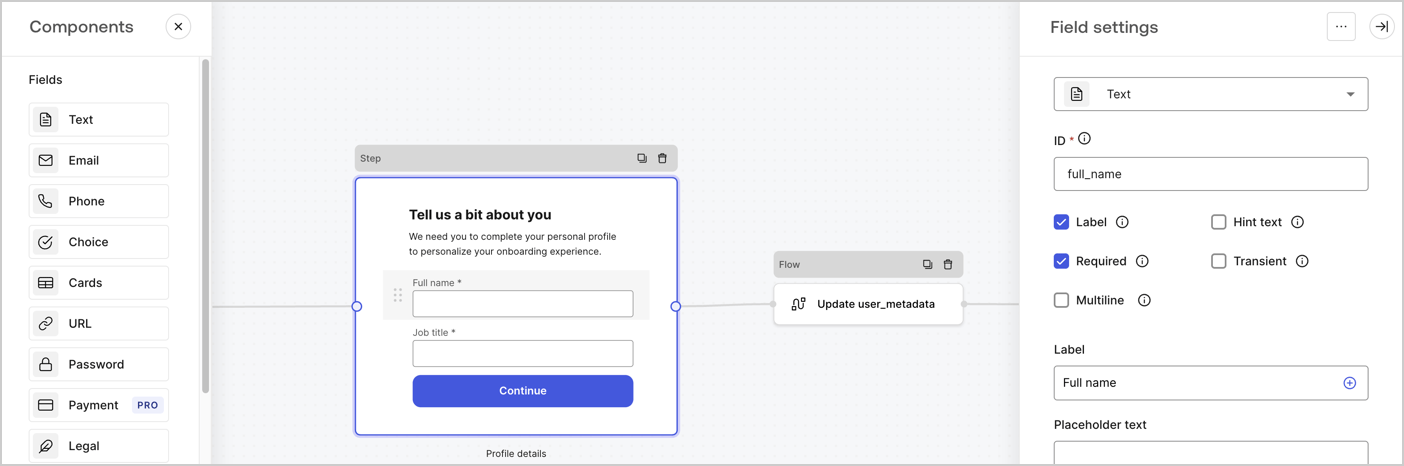
ステップノードは、ユーザーに表示されるグラフィカルインターフェースです。次の手順に従って、ステップノードに[フィールド](/docs/ja-jp/customize/forms/nodes-and-components)を追加し、ユーザーのフルネームと役職の値を収集します。

1. **［Components menu（コンポーネントメニュー）］** から **［Rich text（リッチテキスト）］** フィールドを **［Step（ステップ）］** ノードにドラッグします。

   * **［Rich text（リッチテキスト）］** ：カスタムメッセージを入力します。。
   * **［Save（保存）］** を選択します。
2. **［Text（テキスト）］** フィールドを **［Step（ステップ）］** ノードにドラッグします。

   * **Id** ：`full_name`を入力します。
   * **［Label（ラベル）］** ：`フルネーム`を入力します。
   * **［Label（ラベル）］** ：チェックボックスを有効にします。
   * **［Required（必要）］** ：チェックボックスを有効にします。
   * **［Save（保存）］** を選択します。
3. **［Text（テキスト）］** フィールドを **［Step（ステップ）］** ノードにドラッグします。

   * **Id** ：`job_title`を入力します。
   * **［Label（ラベル）］** ：`役職`を入力します。
   * **［Label（ラベル）］** ：チェックボックスを有効にします。
   * **［Required（必要）］** ：チェックボックスを有効にします。
   * **［Save（保存）］** を選択します。
4. **［Publish（公開）］** を選択し、保存します。

<Frame>
  <img src="https://mintcdn.com/docs-dev-feat-one-trust-integration/XxeZp0Gb4YtJSO78/docs/images/ja-jp/cdy7uua7fh8z/6Kcn0ai9fsVsqHwZpTGByG/37cbf4ffee63a7010926b15f06dd20ac/custom-signup-step-node.png?fit=max&auto=format&n=XxeZp0Gb4YtJSO78&q=85&s=5870f7579209e115ee0f37918d0e79c4" alt="Dashboard > Actions > Forms > Use Case Custom Signup Steps Step node" data-og-width="1404" width="1404" data-og-height="466" height="466" data-path="docs/images/ja-jp/cdy7uua7fh8z/6Kcn0ai9fsVsqHwZpTGByG/37cbf4ffee63a7010926b15f06dd20ac/custom-signup-step-node.png" data-optimize="true" data-opv="3" srcset="https://mintcdn.com/docs-dev-feat-one-trust-integration/XxeZp0Gb4YtJSO78/docs/images/ja-jp/cdy7uua7fh8z/6Kcn0ai9fsVsqHwZpTGByG/37cbf4ffee63a7010926b15f06dd20ac/custom-signup-step-node.png?w=280&fit=max&auto=format&n=XxeZp0Gb4YtJSO78&q=85&s=2ce678bbb8905718fd7eeb95b1e04489 280w, https://mintcdn.com/docs-dev-feat-one-trust-integration/XxeZp0Gb4YtJSO78/docs/images/ja-jp/cdy7uua7fh8z/6Kcn0ai9fsVsqHwZpTGByG/37cbf4ffee63a7010926b15f06dd20ac/custom-signup-step-node.png?w=560&fit=max&auto=format&n=XxeZp0Gb4YtJSO78&q=85&s=c6c1fdb4858b349d27a11277ee8075d7 560w, https://mintcdn.com/docs-dev-feat-one-trust-integration/XxeZp0Gb4YtJSO78/docs/images/ja-jp/cdy7uua7fh8z/6Kcn0ai9fsVsqHwZpTGByG/37cbf4ffee63a7010926b15f06dd20ac/custom-signup-step-node.png?w=840&fit=max&auto=format&n=XxeZp0Gb4YtJSO78&q=85&s=7d0a755d466a29ea7caec46e38cc0ebc 840w, https://mintcdn.com/docs-dev-feat-one-trust-integration/XxeZp0Gb4YtJSO78/docs/images/ja-jp/cdy7uua7fh8z/6Kcn0ai9fsVsqHwZpTGByG/37cbf4ffee63a7010926b15f06dd20ac/custom-signup-step-node.png?w=1100&fit=max&auto=format&n=XxeZp0Gb4YtJSO78&q=85&s=829fef483baef826d8431346d94ae149 1100w, https://mintcdn.com/docs-dev-feat-one-trust-integration/XxeZp0Gb4YtJSO78/docs/images/ja-jp/cdy7uua7fh8z/6Kcn0ai9fsVsqHwZpTGByG/37cbf4ffee63a7010926b15f06dd20ac/custom-signup-step-node.png?w=1650&fit=max&auto=format&n=XxeZp0Gb4YtJSO78&q=85&s=e46c639a5c49b1f198e949e8135139b2 1650w, https://mintcdn.com/docs-dev-feat-one-trust-integration/XxeZp0Gb4YtJSO78/docs/images/ja-jp/cdy7uua7fh8z/6Kcn0ai9fsVsqHwZpTGByG/37cbf4ffee63a7010926b15f06dd20ac/custom-signup-step-node.png?w=2500&fit=max&auto=format&n=XxeZp0Gb4YtJSO78&q=85&s=e11c3941b5445b85a8fdedc3a69138b2 2500w" />
</Frame>

### フローノードの構成

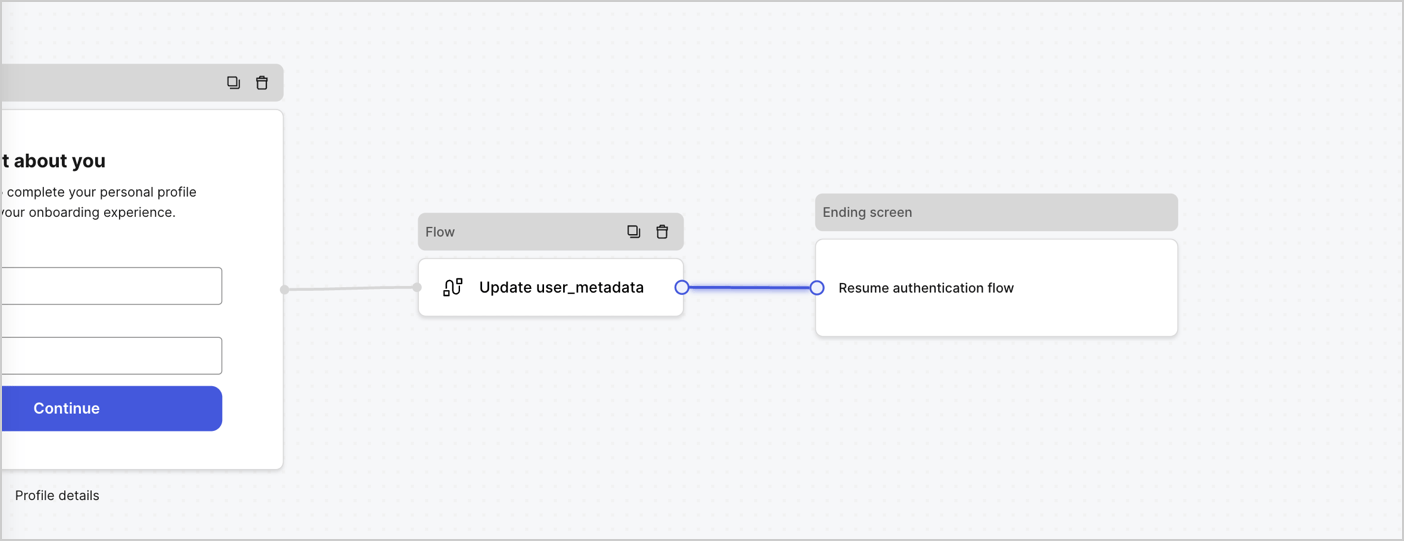
次の手順に従って、 **［Step（ステップ）］** ノードの後に​​ **［Flow（フロー）］** ノードを追加し、`user_metadata`を更新して認証フローを再開します。

1. フォームエディターの下にある **［Flow（フロー）］** を選択します。
2. **［Step（ステップ）］** と **［Ending Screen（終了スクリーン）］** ノードの間にある既存のリンクを削除します。
3. 新しい **［Flow（フロー）］** > **［Click to add a flow（クリックして、フローを追加する）］** > **［Create a new flow（新しいフローを作成する）］** を選択します。

   * **［Name（名前）］** フィールドに`Update user_metadata`を入力します。
   * **［Create（作成）］** を選択します。
   * **［Save（保存）］** を選択します。
4. 下の画像のように **［Step（ステップ）］** と **［Ending Screen（終了スクリーン）** ノードに **［Flow（フロー）］** ノードをリンクします。
5. **［Publish（公開）］** を選択し、保存します。

<Frame>
  <img src="https://mintcdn.com/docs-dev-feat-one-trust-integration/Dh_Hfoswnq0zOdet/docs/images/ja-jp/cdy7uua7fh8z/4nTdYdA2Hu5vK65smkdvJg/db3294ebc25a7c2636be96362a3ea56e/custom-signup-step-flow.png?fit=max&auto=format&n=Dh_Hfoswnq0zOdet&q=85&s=d1ea32ead35499a736ae981fd5825c21" alt="Dashboard > Actions > Forms > Use Case Custom Signup Step Update User metadata flow" data-og-width="1404" width="1404" data-og-height="541" height="541" data-path="docs/images/ja-jp/cdy7uua7fh8z/4nTdYdA2Hu5vK65smkdvJg/db3294ebc25a7c2636be96362a3ea56e/custom-signup-step-flow.png" data-optimize="true" data-opv="3" srcset="https://mintcdn.com/docs-dev-feat-one-trust-integration/Dh_Hfoswnq0zOdet/docs/images/ja-jp/cdy7uua7fh8z/4nTdYdA2Hu5vK65smkdvJg/db3294ebc25a7c2636be96362a3ea56e/custom-signup-step-flow.png?w=280&fit=max&auto=format&n=Dh_Hfoswnq0zOdet&q=85&s=aa04fdf0d90c7b7c5db0d9b94b2700f3 280w, https://mintcdn.com/docs-dev-feat-one-trust-integration/Dh_Hfoswnq0zOdet/docs/images/ja-jp/cdy7uua7fh8z/4nTdYdA2Hu5vK65smkdvJg/db3294ebc25a7c2636be96362a3ea56e/custom-signup-step-flow.png?w=560&fit=max&auto=format&n=Dh_Hfoswnq0zOdet&q=85&s=1f7eb86ab5bca6f4aace3996175cefc4 560w, https://mintcdn.com/docs-dev-feat-one-trust-integration/Dh_Hfoswnq0zOdet/docs/images/ja-jp/cdy7uua7fh8z/4nTdYdA2Hu5vK65smkdvJg/db3294ebc25a7c2636be96362a3ea56e/custom-signup-step-flow.png?w=840&fit=max&auto=format&n=Dh_Hfoswnq0zOdet&q=85&s=63a7c11e0b5e75e11b211627aff74a8b 840w, https://mintcdn.com/docs-dev-feat-one-trust-integration/Dh_Hfoswnq0zOdet/docs/images/ja-jp/cdy7uua7fh8z/4nTdYdA2Hu5vK65smkdvJg/db3294ebc25a7c2636be96362a3ea56e/custom-signup-step-flow.png?w=1100&fit=max&auto=format&n=Dh_Hfoswnq0zOdet&q=85&s=ee7d3cc67a1b689ed26217235049b37d 1100w, https://mintcdn.com/docs-dev-feat-one-trust-integration/Dh_Hfoswnq0zOdet/docs/images/ja-jp/cdy7uua7fh8z/4nTdYdA2Hu5vK65smkdvJg/db3294ebc25a7c2636be96362a3ea56e/custom-signup-step-flow.png?w=1650&fit=max&auto=format&n=Dh_Hfoswnq0zOdet&q=85&s=2c2bbda38121140ce31e7c06250e8f90 1650w, https://mintcdn.com/docs-dev-feat-one-trust-integration/Dh_Hfoswnq0zOdet/docs/images/ja-jp/cdy7uua7fh8z/4nTdYdA2Hu5vK65smkdvJg/db3294ebc25a7c2636be96362a3ea56e/custom-signup-step-flow.png?w=2500&fit=max&auto=format&n=Dh_Hfoswnq0zOdet&q=85&s=03c08b15d02a305d389ab9219c39de9b 2500w" />
</Frame>

Auth0ユーザーの更新アクションをフローに追加するには、次の手順に従います。

1. **［Flow（フロー）］** の **［Update user\_metadata（user\_metadataの更新）］** > **［Edit flow（フローの編集）］** を選択し、新しいタブでフローエディターを開きます。
2. アクションの開始の下にある **［+］** アイコンを選択し、 **Update user（ユーザーの更新）** アクションを追加します。以下のフィールドに記入して、 **［Save（保存）］** を選択し、続けてください。

   * **Connection（接続）** ：ドロップダウンからM2MアプリケーションへのVault接続を選択します。

   * **User ID（ユーザーID）** ：`{{context.user.user_id}}`と入力します。

   * **［Body（ボディ）］** ：次のコードをコピーして貼り付け、`full_name`および`job_title`プロパティを使用してuser\_metadataを更新します。

     ```json lines theme={null}
     {
       "user_metadata": {
         "full_name": "{{fields.full_name}}",
         "job_title": "{{fields.job_title}}"
       }
     }
     ```

   * **［Save（保存）］** を選択します。
3. ［Publish（公開）］を選択し、保存します。

## フォームレンダーコードを取得する

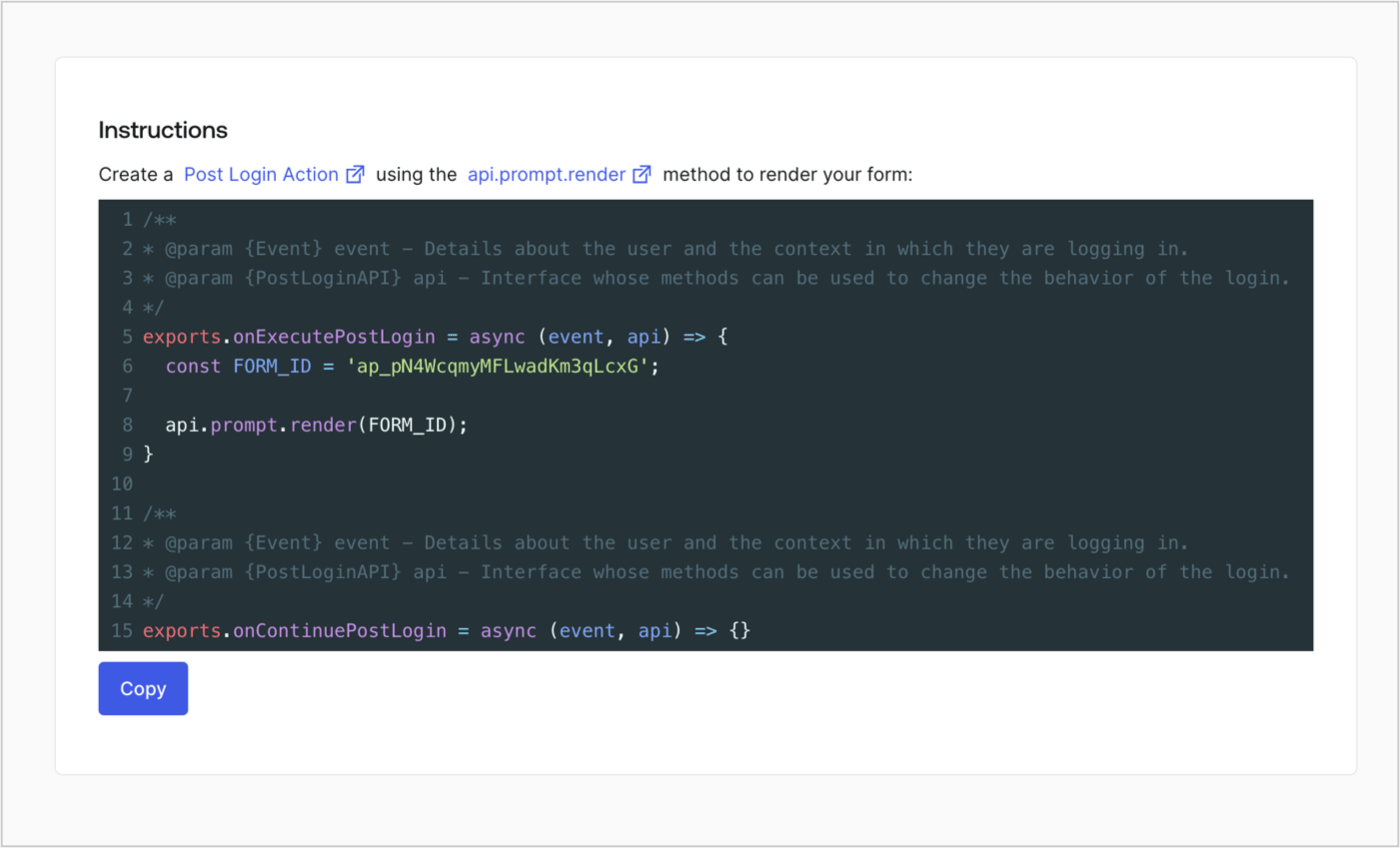
次の手順に従って、フォームレンダーコードを取得して、カスタムのログイン後アクションを使ったフォームを視覚的にレンダリングします。

* Formディターから **`<>`［Render（レンダー）］** を選択します。
* **［Copy（コピー）］** を選択します。

<Frame>
  <img src="https://mintcdn.com/docs-dev-feat-one-trust-integration/xsbfrTtzlS-YzBBm/docs/images/ja-jp/cdy7uua7fh8z/2EIUzc539sq9lwoTKbjoJv/496a864c0fc44a782c9cadca119dbfb0/embed.png?fit=max&auto=format&n=xsbfrTtzlS-YzBBm&q=85&s=79054bdcf826f9d1a3f94f4e36eb9258" alt="Dashboard > Actions > Forms > Form > Embed" data-og-width="1400" width="1400" data-og-height="848" height="848" data-path="docs/images/ja-jp/cdy7uua7fh8z/2EIUzc539sq9lwoTKbjoJv/496a864c0fc44a782c9cadca119dbfb0/embed.png" data-optimize="true" data-opv="3" srcset="https://mintcdn.com/docs-dev-feat-one-trust-integration/xsbfrTtzlS-YzBBm/docs/images/ja-jp/cdy7uua7fh8z/2EIUzc539sq9lwoTKbjoJv/496a864c0fc44a782c9cadca119dbfb0/embed.png?w=280&fit=max&auto=format&n=xsbfrTtzlS-YzBBm&q=85&s=3e2385063ab59eb57220891d35d8ab85 280w, https://mintcdn.com/docs-dev-feat-one-trust-integration/xsbfrTtzlS-YzBBm/docs/images/ja-jp/cdy7uua7fh8z/2EIUzc539sq9lwoTKbjoJv/496a864c0fc44a782c9cadca119dbfb0/embed.png?w=560&fit=max&auto=format&n=xsbfrTtzlS-YzBBm&q=85&s=bf1f84137d6479871bdb830de91d1649 560w, https://mintcdn.com/docs-dev-feat-one-trust-integration/xsbfrTtzlS-YzBBm/docs/images/ja-jp/cdy7uua7fh8z/2EIUzc539sq9lwoTKbjoJv/496a864c0fc44a782c9cadca119dbfb0/embed.png?w=840&fit=max&auto=format&n=xsbfrTtzlS-YzBBm&q=85&s=77504ed65345d570ad763c9298f0b860 840w, https://mintcdn.com/docs-dev-feat-one-trust-integration/xsbfrTtzlS-YzBBm/docs/images/ja-jp/cdy7uua7fh8z/2EIUzc539sq9lwoTKbjoJv/496a864c0fc44a782c9cadca119dbfb0/embed.png?w=1100&fit=max&auto=format&n=xsbfrTtzlS-YzBBm&q=85&s=e8459961785e20d3f3c925af7565242b 1100w, https://mintcdn.com/docs-dev-feat-one-trust-integration/xsbfrTtzlS-YzBBm/docs/images/ja-jp/cdy7uua7fh8z/2EIUzc539sq9lwoTKbjoJv/496a864c0fc44a782c9cadca119dbfb0/embed.png?w=1650&fit=max&auto=format&n=xsbfrTtzlS-YzBBm&q=85&s=45fecdae3d053b2b2fae8e663a095f43 1650w, https://mintcdn.com/docs-dev-feat-one-trust-integration/xsbfrTtzlS-YzBBm/docs/images/ja-jp/cdy7uua7fh8z/2EIUzc539sq9lwoTKbjoJv/496a864c0fc44a782c9cadca119dbfb0/embed.png?w=2500&fit=max&auto=format&n=xsbfrTtzlS-YzBBm&q=85&s=0dff4e1c7c60215c541df09706e5858a 2500w" />
</Frame>

## ポストログインアクションの作成

ポストログインアクションを作成してフォームをレンダリングするには、次の手順に従います。

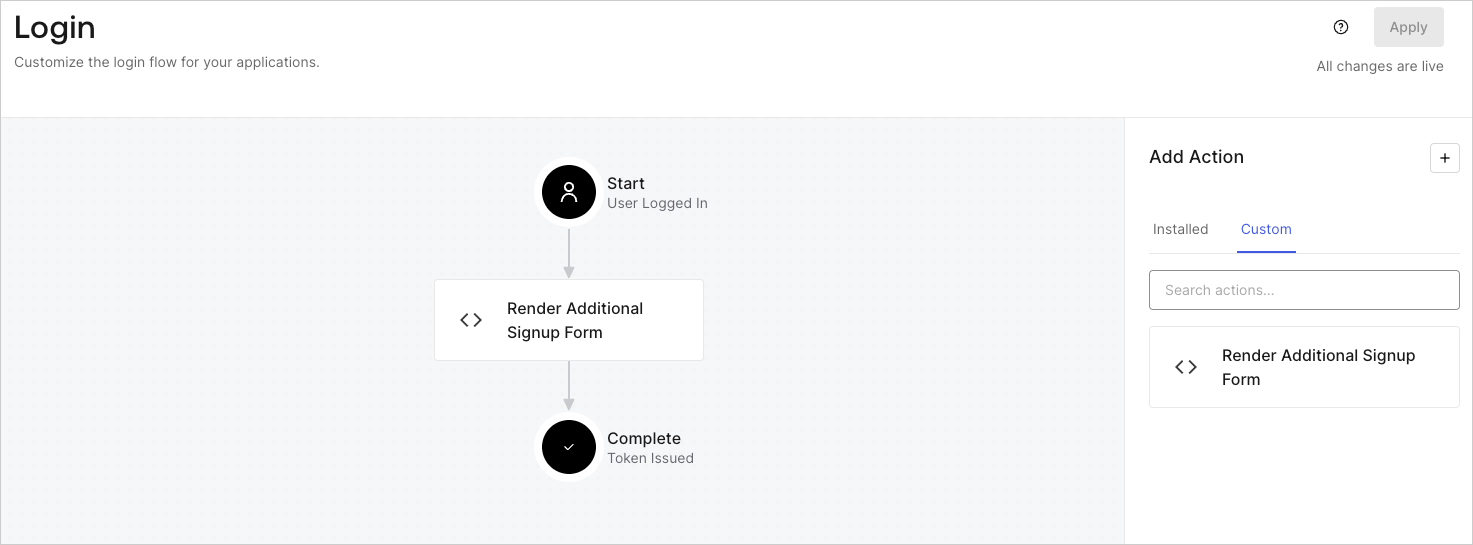
1. **［Auth0 Dashboard（Auth0ダッシュボード）］>［Actions（アクション）］>［Flows（フロー）］>［Login（ログイン）］** に移動します。
2. **+** アイコンを選択し、 **［Build from scratch（初めから構築する）］** を選択します。

   * **［Name（名前）］** ：`［Render Additional Signup Form（追加サインアップフォームのレンダリング）］`を入力します。
   * **［Trigger（トリガー）］** ：`［Login / Post Login（ログイン/ログイン後）］`を選択します。
   * **［Runtime（ランタイム）］** ：推奨バージョンを選択します。
3. **［Create（作成）］** を選択します。

ログイン後アクションを構成するには：

1. 既存のコードをコードエディターから削除します。

2. フォームレンダリングコードをコードエディターにペーストします。

3. コードを編集して、フォームをレンダリングする条件ロジックを定義します。

   ```javascript lines theme={null}
   /**
   * @param {Event} event - Details about the user and the context in which they are logging in.
   * @param {PostLoginAPI} api - Interface whose methods can be used to change the behavior of the login.
   */
   exports.onExecutePostLogin = async (event, api) => {
     const FORM_ID = 'REPLACE_WITH_YOUR_FORM_ID';

     if (
       !event.user.user_metadata.full_name &&
       !event.user.user_metadata.job_title
     ) {
       api.prompt.render(FORM_ID);
     }
   }

   exports.onContinuePostLogin = async (event, api) => { }
   ```

   <Callout icon="file-lines" color="#0EA5E9" iconType="regular">
     上の例にあるコードでは、ユーザーのメタデータにfull\_nameプロパティとjob\_titleプロパティがない場合にフォームが表示されます。
   </Callout>

4. **［Deploy（導入）］** を選択します。

5. **［Render Additional Signup Form（追加サインアップフォームのレンダリング）］** アクションを **［Login（ログイン）］** フローにドラッグ＆ドロップします。

   <Frame>
     <img src="https://mintcdn.com/docs-dev-feat-one-trust-integration/2b0w3av6BJXAqjCj/docs/images/ja-jp/cdy7uua7fh8z/1WBOicIOcH98hKj6Lq9HF2/4951e30a0cc08c7c5daa0116eaa17e11/Screenshot_2024-03-01_at_15.48.00.png?fit=max&auto=format&n=2b0w3av6BJXAqjCj&q=85&s=b4da76263ebaf35c25b8d9738534cd19" alt="Dashboard > Forms > Use Cases Custom Signup Steps Login Flow" data-og-width="1473" width="1473" data-og-height="545" height="545" data-path="docs/images/ja-jp/cdy7uua7fh8z/1WBOicIOcH98hKj6Lq9HF2/4951e30a0cc08c7c5daa0116eaa17e11/Screenshot_2024-03-01_at_15.48.00.png" data-optimize="true" data-opv="3" srcset="https://mintcdn.com/docs-dev-feat-one-trust-integration/2b0w3av6BJXAqjCj/docs/images/ja-jp/cdy7uua7fh8z/1WBOicIOcH98hKj6Lq9HF2/4951e30a0cc08c7c5daa0116eaa17e11/Screenshot_2024-03-01_at_15.48.00.png?w=280&fit=max&auto=format&n=2b0w3av6BJXAqjCj&q=85&s=d200bbcc5a53be886c0d54492432801e 280w, https://mintcdn.com/docs-dev-feat-one-trust-integration/2b0w3av6BJXAqjCj/docs/images/ja-jp/cdy7uua7fh8z/1WBOicIOcH98hKj6Lq9HF2/4951e30a0cc08c7c5daa0116eaa17e11/Screenshot_2024-03-01_at_15.48.00.png?w=560&fit=max&auto=format&n=2b0w3av6BJXAqjCj&q=85&s=3b13b39a34cb7cbd9c8a1869ac354f6f 560w, https://mintcdn.com/docs-dev-feat-one-trust-integration/2b0w3av6BJXAqjCj/docs/images/ja-jp/cdy7uua7fh8z/1WBOicIOcH98hKj6Lq9HF2/4951e30a0cc08c7c5daa0116eaa17e11/Screenshot_2024-03-01_at_15.48.00.png?w=840&fit=max&auto=format&n=2b0w3av6BJXAqjCj&q=85&s=9dc1d2f3c4974fc022fed6ae59ed3af5 840w, https://mintcdn.com/docs-dev-feat-one-trust-integration/2b0w3av6BJXAqjCj/docs/images/ja-jp/cdy7uua7fh8z/1WBOicIOcH98hKj6Lq9HF2/4951e30a0cc08c7c5daa0116eaa17e11/Screenshot_2024-03-01_at_15.48.00.png?w=1100&fit=max&auto=format&n=2b0w3av6BJXAqjCj&q=85&s=5fb34c05671a726624cd47eb5ab1362f 1100w, https://mintcdn.com/docs-dev-feat-one-trust-integration/2b0w3av6BJXAqjCj/docs/images/ja-jp/cdy7uua7fh8z/1WBOicIOcH98hKj6Lq9HF2/4951e30a0cc08c7c5daa0116eaa17e11/Screenshot_2024-03-01_at_15.48.00.png?w=1650&fit=max&auto=format&n=2b0w3av6BJXAqjCj&q=85&s=5b832bb701f0ed6e1151a11842d55f95 1650w, https://mintcdn.com/docs-dev-feat-one-trust-integration/2b0w3av6BJXAqjCj/docs/images/ja-jp/cdy7uua7fh8z/1WBOicIOcH98hKj6Lq9HF2/4951e30a0cc08c7c5daa0116eaa17e11/Screenshot_2024-03-01_at_15.48.00.png?w=2500&fit=max&auto=format&n=2b0w3av6BJXAqjCj&q=85&s=53f8d5e01db328b15f36138e8a4d8e7e 2500w" />
   </Frame>

6. **［Apply（適用）］** を選択します。

### 実装のテスト

次の手順に従って実装をテストします。

* 新規ユーザーでアプリケーションにサインアップします。
* ログインフローのログイン後アクションでは、フォームがレンダリングされ、情報の入力が求められます。
* **［<Tooltip data-tooltip-id="react-containers-DefinitionTooltip-0" href="/docs/ja-jp/glossary?term=auth0-dashboard" tip="Auth0 Dashboard: サービスを構成するためのAuth0の主製品。" cta="用語集の表示">Auth0 Dashboard</Tooltip>（Auth0ダッシュボード）］>［User Management（ユーザー管理）］>［Users（ユーザー）］** を選択し、新しいユーザーを見つけ、その属性`full_name`および`job_title`が追加サインアップステップからの情報を含んでいることを検証します。